
Looking after PraiseAV
Backups and moving to a new computer
Backing up
- Click Open (in the Service column), then Backup and moving….
- Tick Include media if you want your pictures, videos and music in it too. It shows how big they are.
- Click Back up now… and choose where. A USB stick or OneDrive is best: somewhere that isn’t this computer.
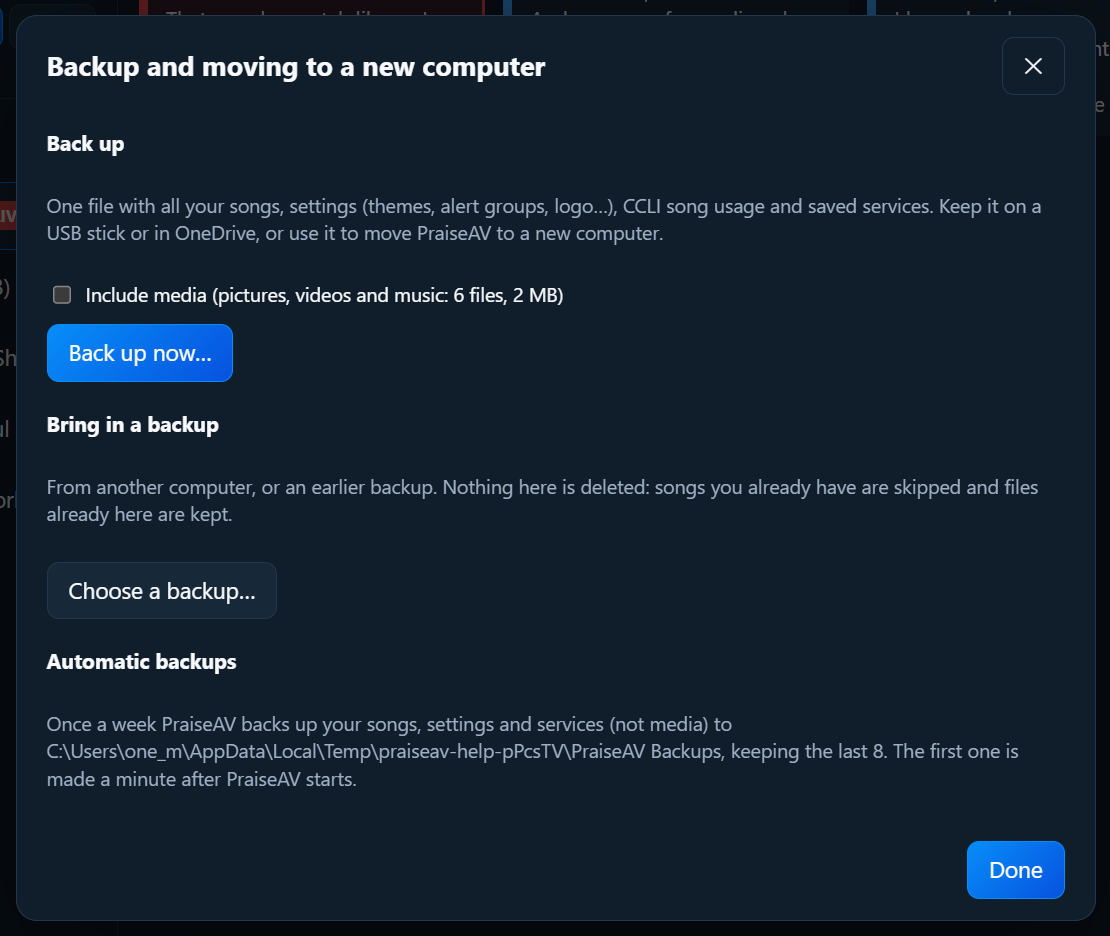
The backup is one file (.praiseav-backup) with all your songs, settings (themes, alert groups, logo…), CCLI song usage and saved services.
Automatic backups
Once a week, PraiseAV backs up your songs, settings and services by itself (not media) to Documents › PraiseAV Backups. It keeps the last 8. The Backup window says when the last one was.
Moving to a new computer
- On the old computer, back up with media.
- Install PraiseAV on the new computer.
- Click Open, Backup and moving…, then Choose a backup….
- It says what’s in it: which computer, when, how many songs and services. Click Bring it in.
Bringing in a backup is safe
Nothing on this computer is deleted. Songs you already have are skipped, and files already here are kept. So you can bring in a backup from another computer to add its songs without losing your own.
The church’s settings (themes, logo…) are taken from the backup.
Where PraiseAV keeps things
| What | Where |
|---|---|
| Media | Documents › PraiseAV Media (or the folder you chose) |
| Automatic backups | Documents › PraiseAV Backups |
| Services | Wherever you chose in Open (this computer, OneDrive, Google Drive…) |
| Songs and settings | Inside PraiseAV. Use a backup to copy them. |