
Media and slides
Themes: how the words look
A theme is how the words look: the font, size, colour and what’s behind them.
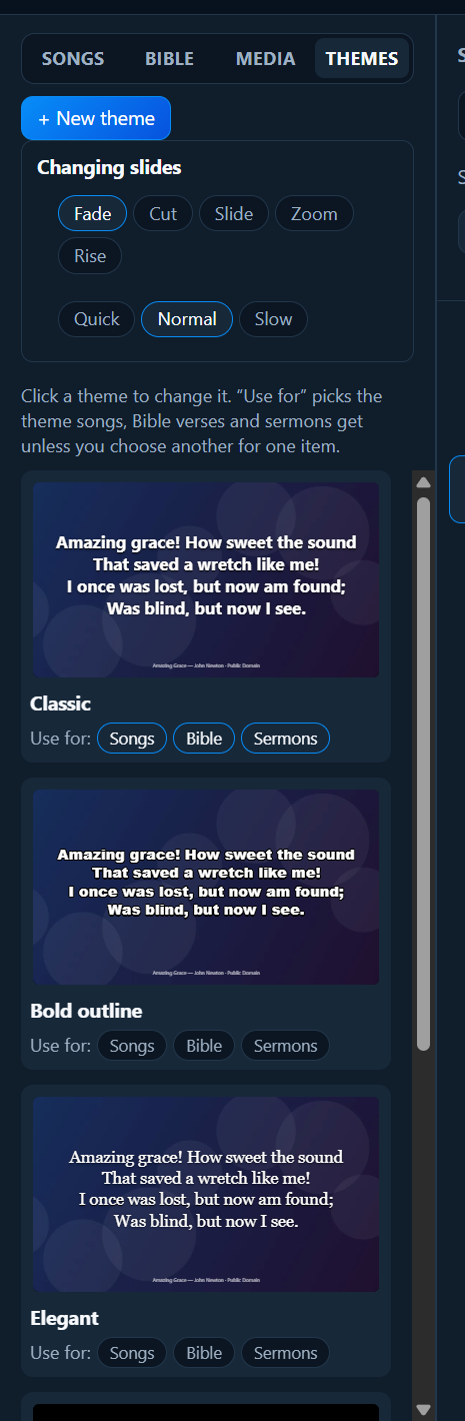
The built-in themes
- Classic: the starting theme.
- Bold outline: thick letters with an outline, easy to read over busy backgrounds.
- Elegant: a serif font.
- High contrast (easy to read): for people who find the screen hard to read.
- Words at the bottom: leaves the picture clear above.
Choosing a theme for songs, Bible verses and sermons
Under each theme, Use for: has Songs, Bible and Sermons. Click to make that theme the one they get. For example, songs in Classic and Bible verses in Elegant.
One item in a different theme
Select an item in the service. Above its slides, choose a Theme: from the list. Only that item changes.
A video behind one song (communion, for example)
For a reflective moment, put a calm video behind just one song:
- Add the video in the Media tab (a candle, bread and wine, or a starter background).
- Click + New theme, name it (“Communion”), and set Behind the words to A picture or video, choosing the video.
- In the service, select the song and choose Theme: Communion above its slides.
The video loops behind the words for that song only.
Sound: a background video is silent unless you tick Play the video’s sound in the theme (it shows when the background is a video). Then the video’s own sound plays through the projector computer’s sound, starting from the beginning each time a song with that theme comes on. That’s useful for a video with its own music, and the words can even move by themselves in time with it. Or keep the video silent and give the song a backing track, or play music from Music and audio.
Changing a theme, or making your own
Click a theme’s picture to change it. Built-in themes can’t be changed: clicking one makes your own copy to change. Or click + New theme.
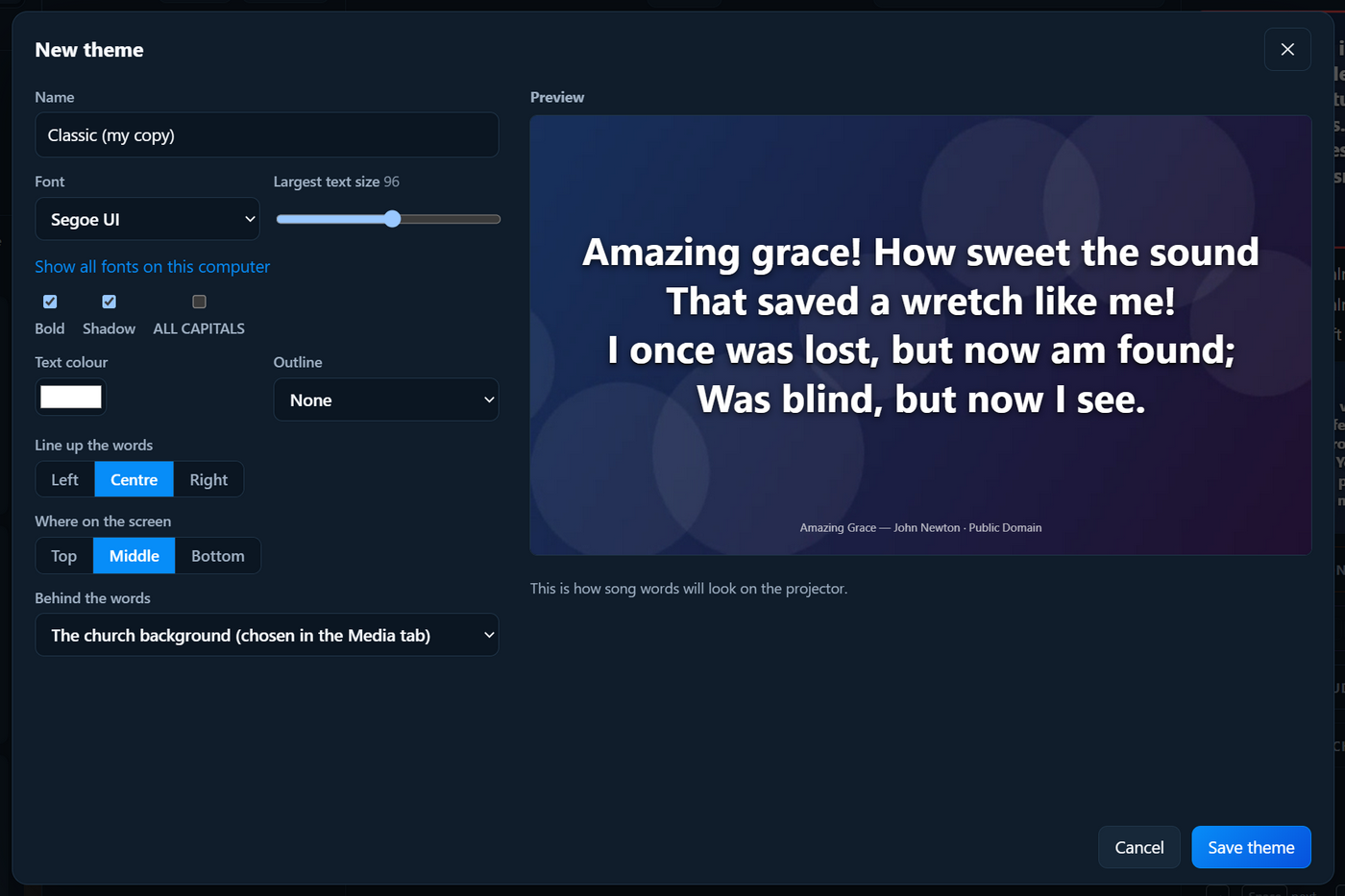
- Name.
- Font, and Largest text size. Long verses get smaller by themselves to fit; this is how big short ones get. Show all fonts on this computer lists every font.
- Bold, Shadow, ALL CAPITALS.
- Text colour, Outline (None, Thin, Thick) and its colour.
- Line up the words (left, centre, right) and Where on the screen (top, middle, bottom).
- Behind the words: The church background (chosen in the Media tab), A picture or video, A plain colour, or Black. For a video, tick Play the video’s sound to hear it.
The Preview shows how song words will look on the projector. Click Save theme. Delete theme removes your own theme; anything using it goes back to Classic.
How slides change
At the top of the Themes tab, Changing slides:
- Fade (the usual), Cut (instant), Slide, Zoom, Rise.
- Speed: Quick, Normal, Slow.
This is for every screen and every item.