
Screens and livestream
Livestream and ATEM
When you stream a service, viewers at home want to see the room and read the words. The Livestream screen gives a video mixer just the words, in a strip, ready to lay over the camera.
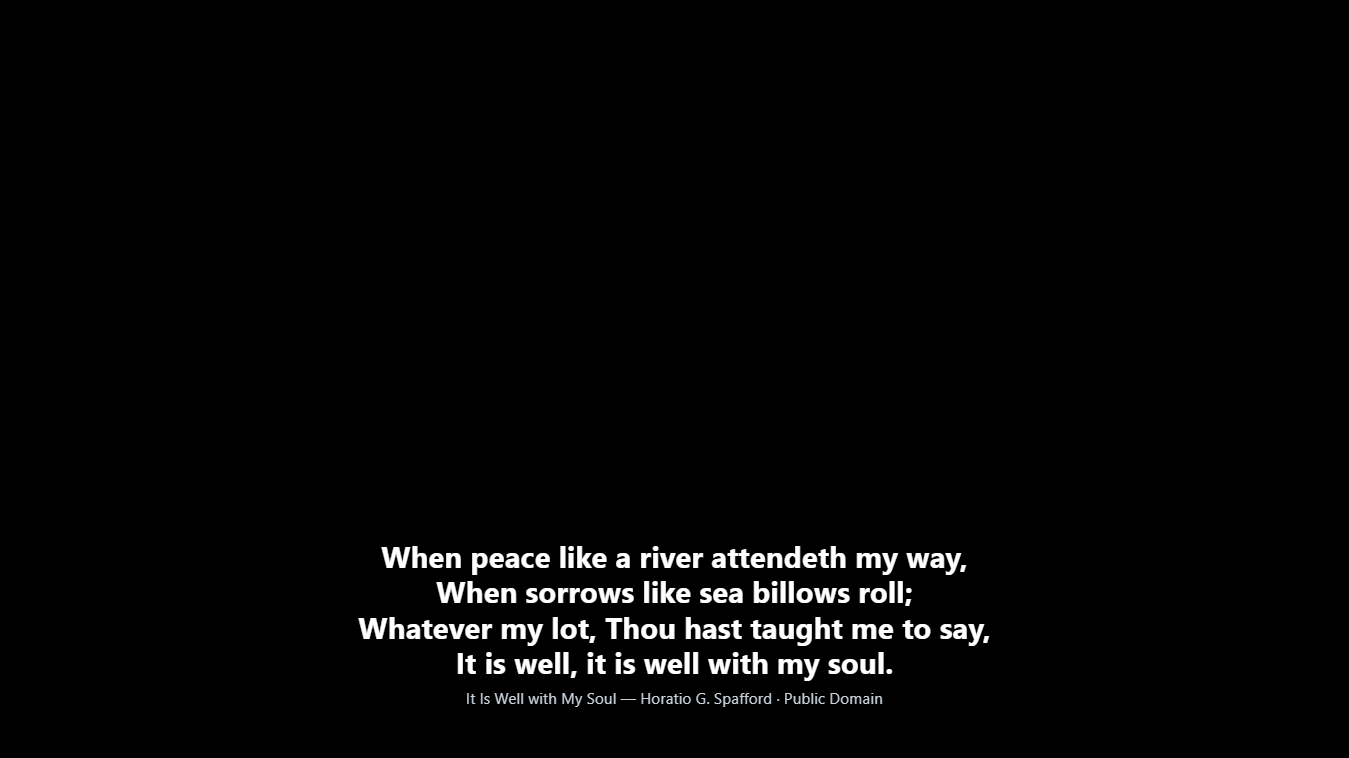
How it fits together
The ATEM keys the words over the camera: it cuts out the black (or green) and keeps the words.
See Example setups for the whole picture.
Setting up the Livestream screen
- Plug a second HDMI output of the computer into an ATEM input.
- In Screens…, give that screen the Livestream job.
- Under Livestream in the same window, choose the Background:
- Black: for a luma key: the usual for an ATEM.
- Green: for a chroma key (the words sit on a dark band): for OBS, vMix or mixers that key on green.
- Optional: your CCLI Streaming Licence number. It shows small under the song details.
Only songs and verses show on the Livestream screen. Congregation alerts never go on it, so children’s numbers stay private.
Controlling an ATEM from PraiseAV
PraiseAV can talk to a Blackmagic ATEM Mini (any model) over the network.
- Plug the ATEM into the same network as the computer with an Ethernet cable (USB alone isn’t enough).
- Click ATEM… at the top of PraiseAV, and tick Control a Blackmagic ATEM switcher from PraiseAV.
- Type the ATEM’s address and click Connect. A new ATEM Mini uses
192.168.10.240. Blackmagic’s ATEM Setup app shows it. - When it says Connected, choose:
- Which input is this computer (the slides)?
- Keyer that puts the livestream words over the camera: usually Downstream key 1. Or None if you’d rather do it on the ATEM’s buttons.
- Tick Turn the words on and off by themselves so the words appear when a song or verse is on screen and go away for the sermon.
- Under Try it: Show slides, Back to camera, Words on, Words off. Check each one works.
The window also shows the ATEM’s model and firmware. If the firmware is older than 8.0, update it with ATEM Setup.
During the service
- At the top of PraiseAV: ● Go live starts streaming, ● Record starts recording (on models that can). They show ON AIR and REC with the time. PraiseAV asks before starting or stopping the stream.
- In the right-hand column, Livestream shows what’s on the stream, with Show slides and Back to camera for full-screen slides (a video, notices).
The stream key and YouTube scheduling stay in ATEM Software Control and YouTube Studio: set them up once there.
If something isn’t working, Open the ATEM log (bottom of the ATEM window) keeps a record to send to whoever helps you.
With OBS or vMix instead
OBS Studio is free streaming software for a computer; vMix is a paid one.
The easiest way needs no cables: turn on Screens… › Show on the network and add the words page to OBS as a Browser source (or to vMix as a Web Browser input). See Screens on the network.
Or, with a cable:
- Use a capture card to bring the Livestream screen into the OBS computer (or run OBS on the PraiseAV computer and use a Window capture of a Livestream window: Screens… › Open a view in a window › Livestream).
- Choose the Green background.
- In OBS, add a Chroma Key filter to that source and put it above the camera.