
Running a service
Running a service
On Sunday you mostly need two things: click a slide to put it on screen, and Next to move on.
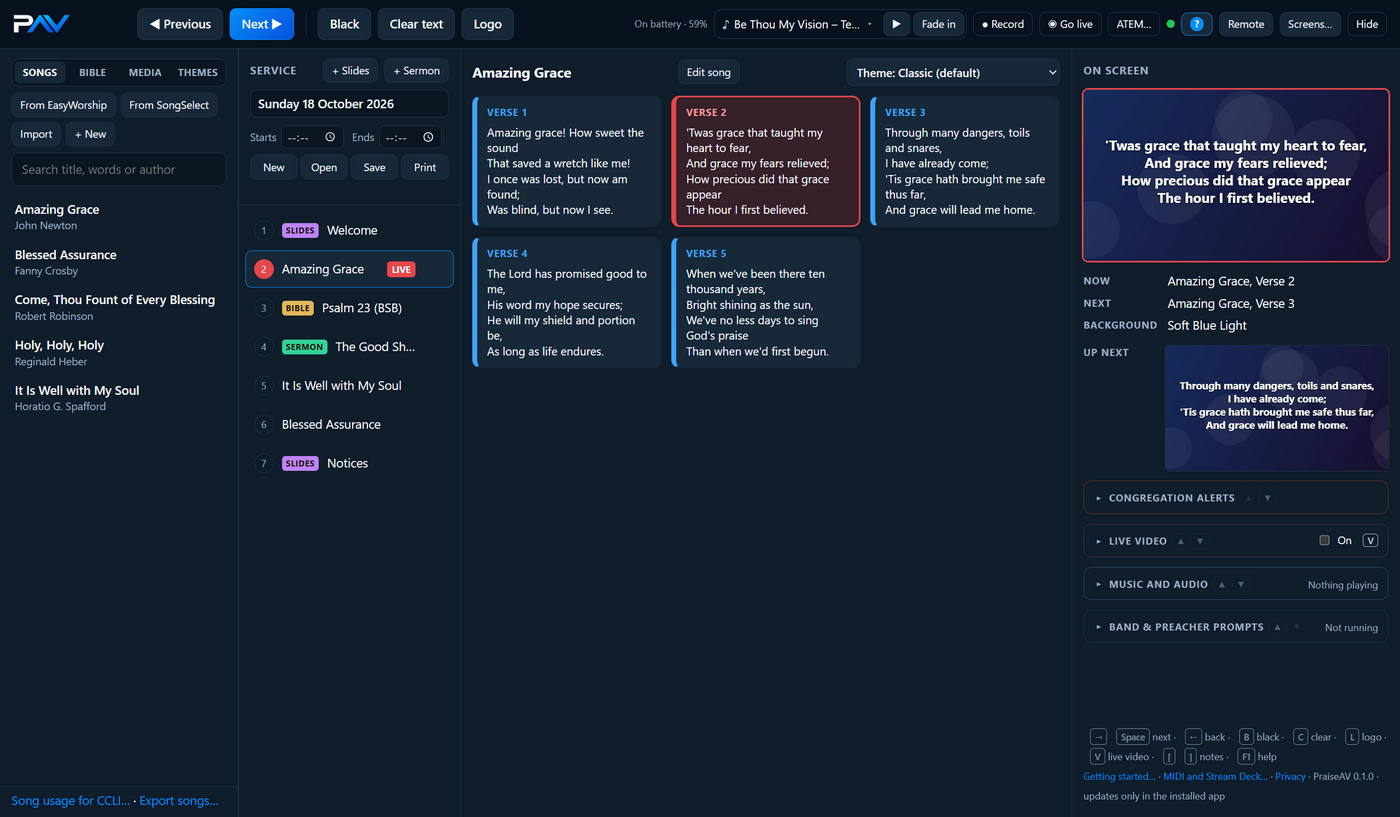
Putting something on screen
- Click an item in the Service column. Its slides appear in the middle.
- Click a slide. It’s on the screen now: it gets a red border, and the item gets a LIVE label.
Next and Previous
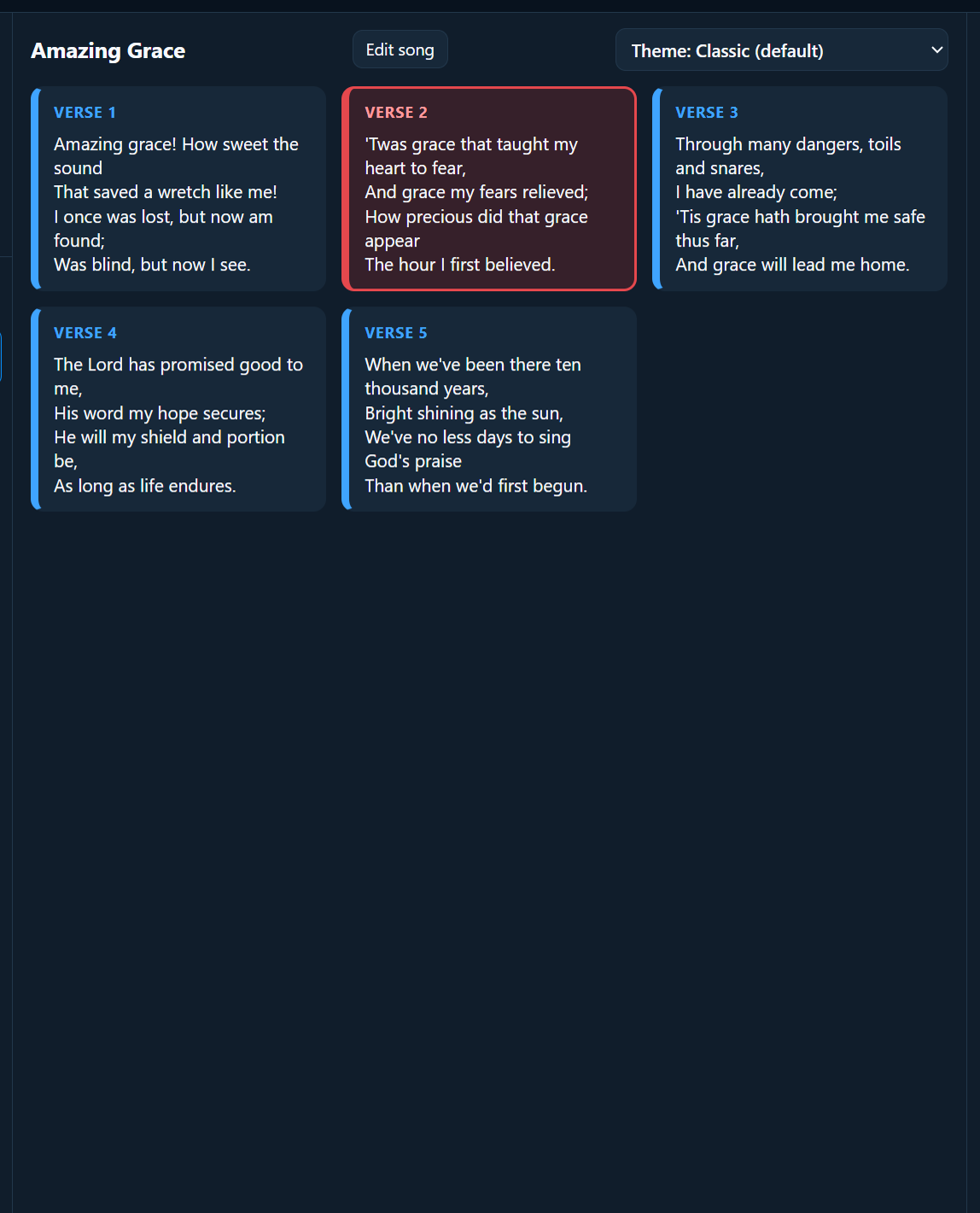
- Next (or →, Space, Page Down, or a clicker) shows the next slide.
- At the end of an item, Next goes on to the first slide of the next item in the service.
- Previous (or ←) goes back.
On screen and Up next
The right-hand column shows:
- On screen: exactly what the congregation sees now, with a red border.
- Now and Next: in words.
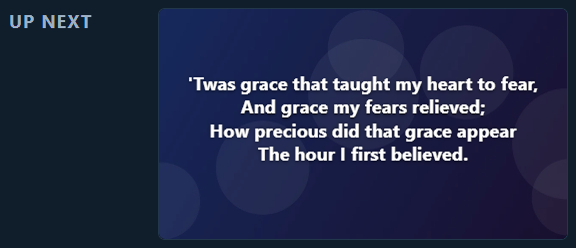
- Up next: a small picture of exactly what Next will put on the screen.
Below them are Congregation alerts, Live video, Music and audio and Band & preacher prompts. Each folds away to one line until it's wanted. Put them in the order that suits your church with the small ▲ ▼ beside each title: PraiseAV remembers it on this computer.
Black, Clear text and Logo
| Button | Key | What happens |
|---|---|---|
| Black | B | The screen goes black. Use it between items, or if anything goes wrong. |
| Clear text | C | The words go, the background stays. Good for a moment of reflection. |
| Logo | L | Your church logo. Good before and after the service. |
Press the button again (or the key) to come back. Clicking any slide comes back too.
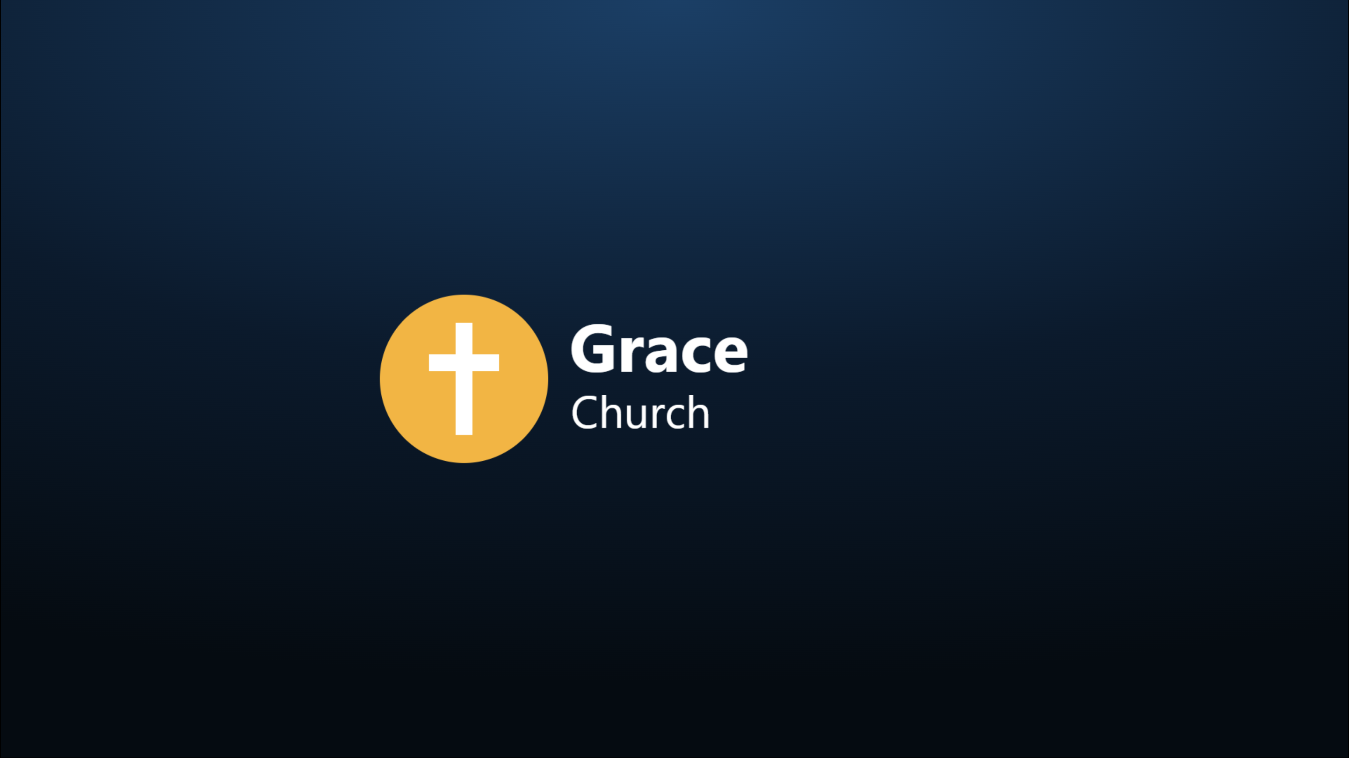
Choose your logo in the Media tab: click a picture and Use as logo. See Media.
Timed words (a song that plays itself)
When a song plays its own recorded music, a backing track or video, the words can move on by themselves in time with it, like a karaoke video. Record the timing once, by pressing Next along with the music:
- Select the song in the service. Above its slides, click ⏱ Record timing. The song goes on screen from the top, and its video or backing track starts from the beginning.
- Press Next (or the clicker, a pedal, or the phone remote) in time with the music, just as you would live.
- At the end, click Done. PraiseAV says how many slide changes it recorded.
From then on, Words move by themselves is ticked. When the song comes on screen (from its first slide), the words move on as recorded, and a TIMED label shows. ▶ From the top starts the song and its music again with the timing.
If you press Next, Previous or click a slide yourself while it’s timed, the timing stops and you’re in charge again. Black, Clear text and Logo don’t stop it.
Not right? Click Record again. Untick Words move by themselves to move the words by hand in this service.
The timing is kept with the song, so it’s ready the next time you add the song to a service. It only runs when the song’s backing track or video is playing: if you untick Play the backing track/video (the band is playing it live), the words wait for Next as usual.
Videos
When a video is on screen, buttons appear under On screen: Pause / Play and From the start. It says whether the video loops or plays once. To change that, tick Loop above the video’s slides.
Videos play with sound on the projector’s computer (to your sound desk). The video in PraiseAV’s own window is silent.
The logo in the corner
Some churches like their logo small in a corner all the time, like a TV channel. Open Live video on the right, and tick Church logo in the corner, then choose which corner. The words move to stay clear of it.
If your logo has words in it, they’ll be small up there. You can choose a different picture for the corner, such as just your symbol: see Media.
Using a clicker
Presentation clickers (like the ones for PowerPoint) work straight away. Forward is Next, back is Previous, and the “blank screen” button is Black. Most work from the back of the room, so the person running PraiseAV can sit with everyone.
The phone remote does the same from a phone.
Hiding all the screens
Hide (top right) takes all PraiseAV’s screens away, for example to use the projector for something else. Show brings them back.
To take just one screen away (say the second monitor, to use it for something else), click Screens… and set that screen to Not used.
The top bar in a smaller window
The top bar always stays one row. When PraiseAV's window is narrower (half the screen, next to something else), it makes room by itself: the key letters on the buttons are hidden, the song's name gets shorter, and ATEM…, Remote and Screens… move into ⋯ More. Widen the window and they come back.