
Start here
Coming from EasyWorship
PraiseAV works the way EasyWorship users expect, so most things will feel familiar. This page shows how to bring your things across and where to find everything.
Bring your songs and backgrounds across
Do this on the computer that has EasyWorship on it.
- In PraiseAV, click Getting started… (bottom right), then Yes: bring my songs and backgrounds across.
- PraiseAV finds EasyWorship and shows how many songs and backgrounds it found.
- Click Bring in the songs, then Bring them in for the backgrounds, pictures and videos.
- Songs you already have are skipped, so it’s safe to do again.
- Backgrounds go into the Media tab, under Backgrounds › From EasyWorship.
- EasyWorship itself isn’t changed or removed. You can keep using it while you try PraiseAV.
- Videos in old formats (WMV, AVI, MPEG) can’t be played. The free HandBrake app turns them into MP4, which works.
You can also bring songs in from the Songs tab at any time: click From EasyWorship.
EasyWorship on a different computer
Copy EasyWorship’s song library (the files Songs.db and SongWords.db, usually in Public Documents › Softouch › EasyWorship › Default › Databases › Data) onto a USB stick. Then, in PraiseAV, use From EasyWorship and choose Songs.db from the stick.
EasyWorship schedules
Saved schedules (.ewsx files) can be imported with Import in the Songs tab. Their songs and Bible readings are added to the end of the service. Videos and presentations in a schedule aren’t brought across: add them again from the Media tab.
Where things are
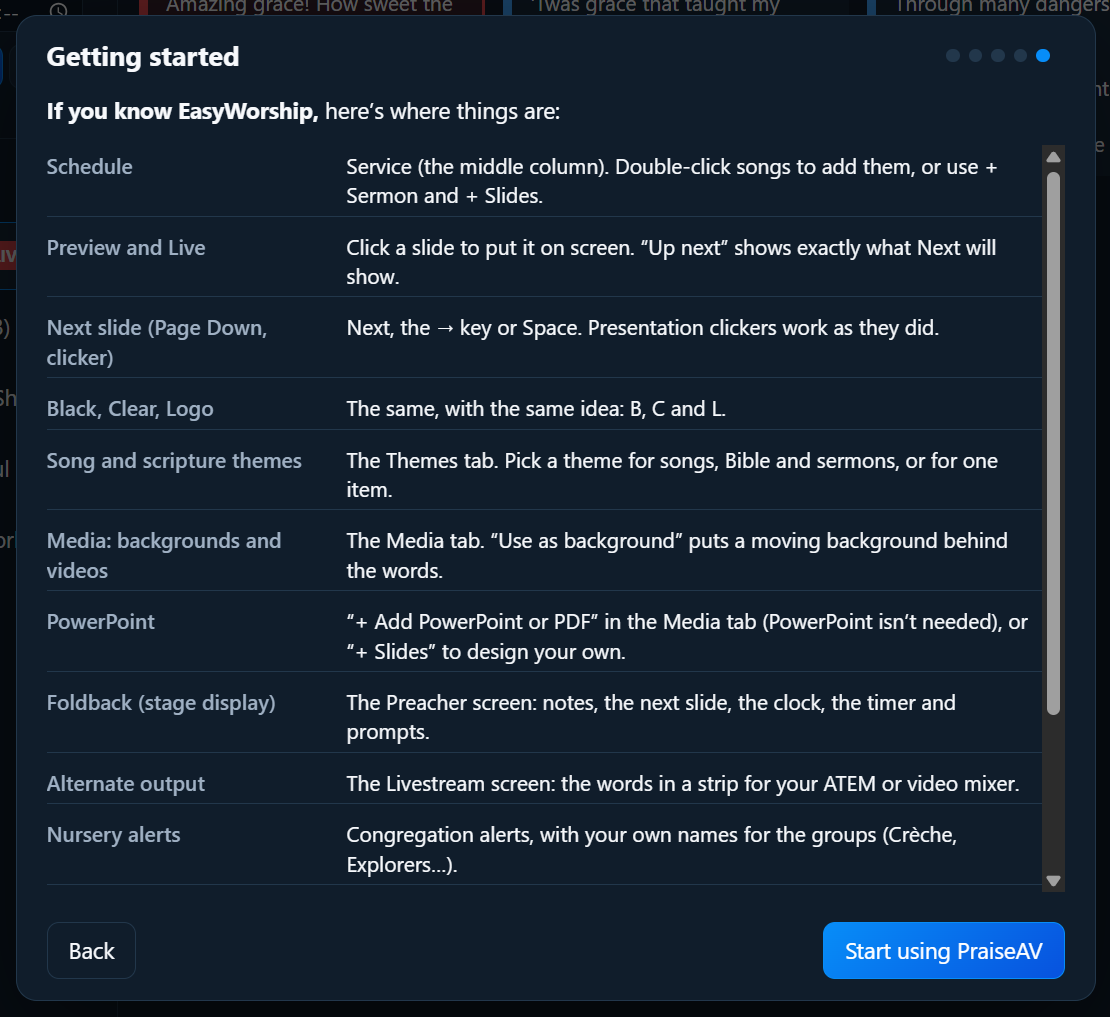
| In EasyWorship | In PraiseAV |
|---|---|
| Schedule | The Service column. Double-click songs to add them, or use + Sermon and + Slides. |
| Preview and Live | Click a slide to put it on screen. Up next (right) shows exactly what Next will show. |
| Go to the next slide (Page Down, clicker) | Next, the → key, Space or Page Down. Clickers work as before. |
| Black, Clear, Logo | The same buttons, with the keys B, C and L. |
| Themes | The Themes tab. Choose a theme for songs, Bible and sermons, or for one item. See Themes. |
| Media (backgrounds, videos, images) | The Media tab. Use as background puts a moving background behind the words. |
| Audio | Music goes in the Media tab too, and plays from Music and audio on the right. See Music and audio. |
| PowerPoint | + Add PowerPoint or PDF in the Media tab. PowerPoint doesn’t need to be installed. See PowerPoint and PDF. |
| Presentations | + Slides opens the slide designer. |
| Foldback (stage display) | The Preacher screen: notes, the next slide, the clock, the timer and prompts. See Sermons. |
| Alternate output | The Livestream screen: the words in a strip for your ATEM or video mixer. See Livestream. |
| Nursery alerts | Congregation alerts, with your own names for the groups. See Congregation alerts. |
| Countdowns | Band & preacher prompts on the right. See Timers. |
| Announcement loops | Set any slides to Loop by itself. See Announcement loops. |
| Saving and transferring schedules | Save and Open, on this computer, OneDrive, Google Drive or a USB stick. See Services. |
| Bible (NIV) | NIV and more from bible.com in the Bible tab. See The Bible. |
| SongSelect | From SongSelect in the Songs tab opens SongSelect in its own window. Sign in with your church’s account, find a song and press Download: it’s added to your songs by itself. See Songs from SongSelect. |
| Reports (song usage) | Song usage for CCLI… under the song list. See CCLI report. |
What’s different
- PraiseAV is free. No subscription, and as many computers as you like.
- Extra screens are built in. A preacher’s screen, a timer and a livestream feed each go on their own screen, without a subscription or splitter.
- PowerPoint isn’t needed to show PowerPoint files, and PDFs work too.
- Plan at home, run at church: keep services in OneDrive or Google Drive and they appear on the church computer.
- Livestreaming built in: straight to YouTube or Facebook with the stream key, no OBS or ATEM needed. See Going live.
- A phone remote works in any phone’s web browser, with nothing to install. See Phone remote.