
Media and slides
PowerPoint and PDF
A visiting speaker brings slides on a USB stick? Add them to the service.
Adding slides
In the Media tab, click + Add PowerPoint or PDF and choose the file. Or drag the file onto the service.
PraiseAV turns each slide into a picture. It says how far it’s got (“Making slides… 4 of 12”), then adds the slides to the service.
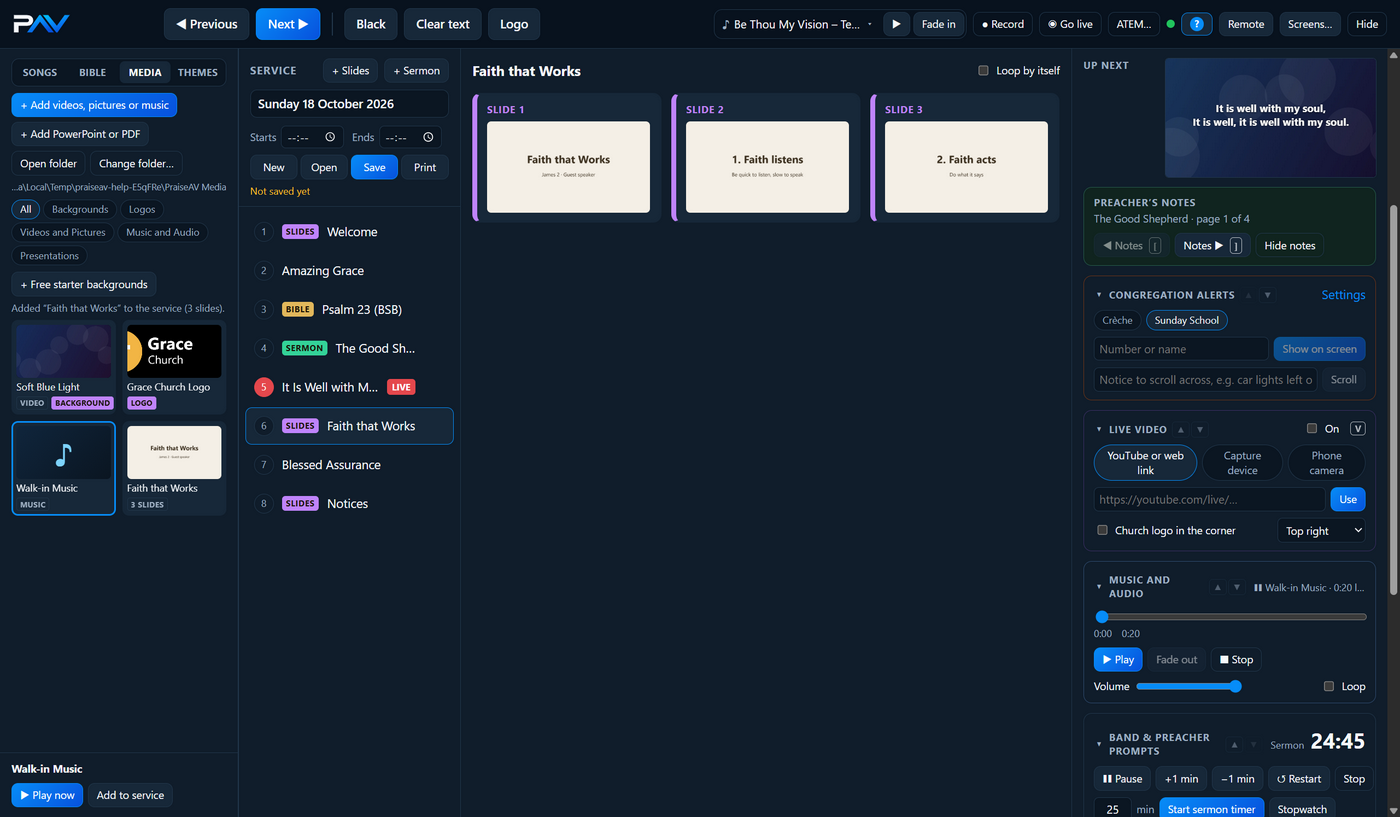

Click a slide to put it on screen, and use Next as normal. The slides are kept in the Media tab under Presentations, so you can add them to another service.
Which files
- PDF: always works.
- PowerPoint (PPTX, PPT, PPS, PPSX), LibreOffice (ODP) and Keynote (KEY): need Microsoft PowerPoint or the free LibreOffice on this computer. PraiseAV uses PowerPoint if it’s there (closest to how the slides were made), otherwise LibreOffice.
If neither is installed, PraiseAV offers to open the LibreOffice download page. Install it once, then add the PowerPoint again.
What doesn’t come across
Each slide becomes a still picture, so:
- Animations (points appearing one by one) and transitions aren’t kept. Each slide shows as it looks at the end.
- Videos inside the PowerPoint don’t play. Ask for the video file separately and add it from the Media tab.
- The speaker’s notes aren’t brought in. Paste them into a sermon to show on the preacher’s screen.
Moving on by itself
Tick Loop by itself above the slides to make them move on every few seconds and go round again: good for a notices presentation before the service. See Announcement loops.