
Building a service
Services
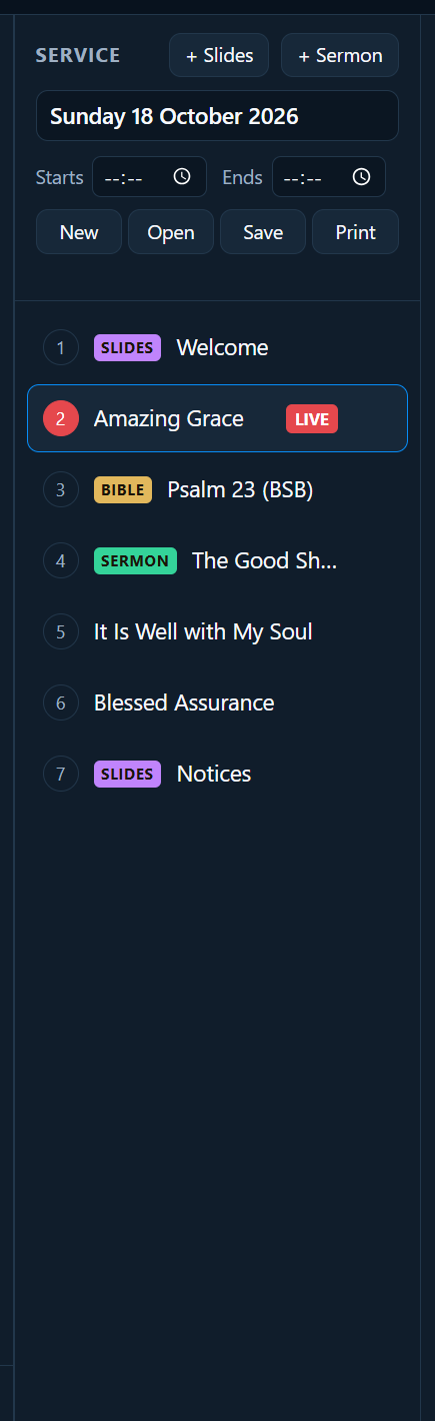
A service is the order of everything for one meeting: songs, readings, the sermon, videos, notices. It’s the second column of the window.
Building a service
- Songs: double-click in the Songs tab, or drag them in. See Songs.
- Bible readings: from the Bible tab. See The Bible.
- The sermon: click + Sermon. See Sermons.
- Your own slides: click + Slides (notices, a welcome, a verse with a picture). See Slide designer.
- Videos, pictures, music, PowerPoint: from the Media tab. See Media.
New items go just after the selected one. Drag items to change the order. To take one out, point at it and click ✕.
Each item shows what it is: Bible, Sermon, Video, Music or Slides (songs have no label).
Start and end times
Under the name, Starts and Ends set when the service begins and finishes. The congregation screen counts down to the start, and the preacher’s screen shows how long is left. See Band and preacher prompts.
Saving
- Type a name at the top of the Service column. PraiseAV suggests the coming Sunday’s date.
- Click Save (or press Ctrl+S).
The words under the buttons say whether it’s saved. Save turns blue when there are changes not yet saved.
Opening a saved service
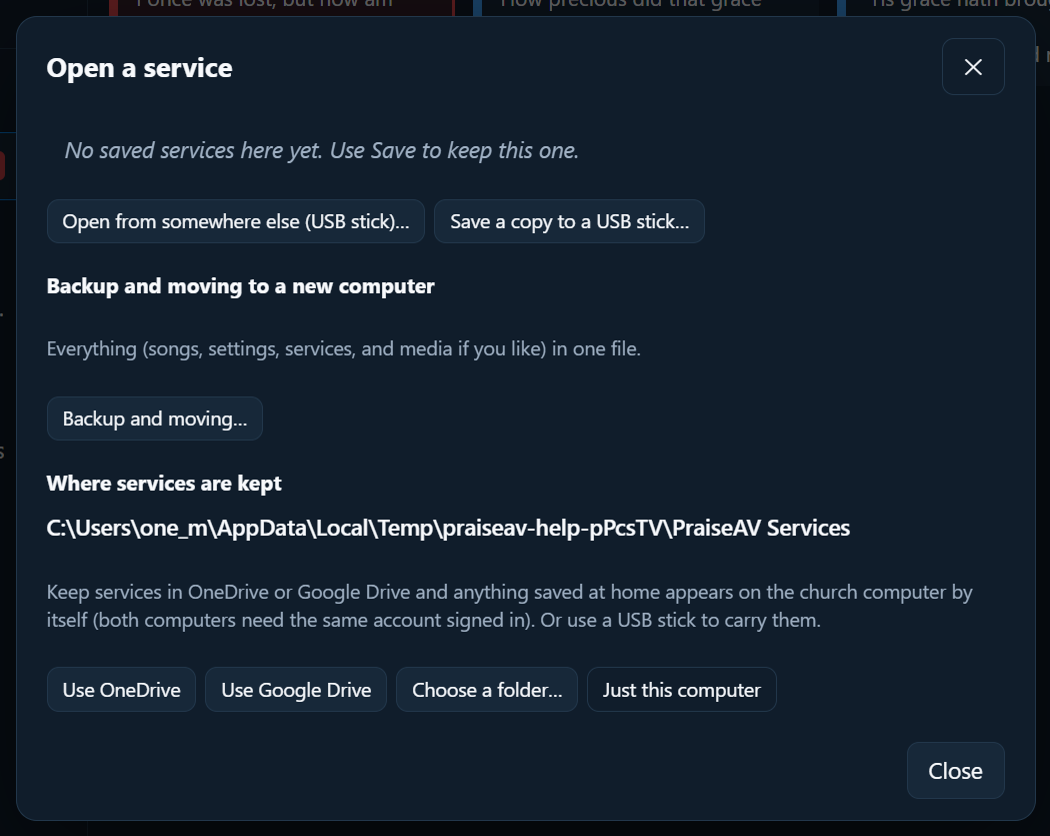
Click Open. Your saved services are listed, newest first. Click one to open it.
A saved service carries its own copy of every song, so it works on another computer even if that computer doesn’t have the songs: they’re added to its library. Pictures and videos aren’t inside the file (they can be big). If one is missing, PraiseAV tells you which.
Plan at home, run at church
Keep services in a folder that both computers can see. In Open, under Where services are kept:
- Use OneDrive or Use Google Drive: services saved at home appear on the church computer by themselves, if both are signed in to the same account. (The buttons show when OneDrive or Google Drive is on this computer.)
- Choose a folder…: anywhere, for example a shared folder.
- Just this computer: back to normal.
With a USB stick
- Save a copy to a USB stick… saves this service wherever you choose.
- Open from somewhere else (USB stick)… opens a service file from anywhere.
Starting a new service
Click New. If this one has changes that aren’t saved, PraiseAV asks first. Songs stay in your library.