
Building a service
Songs
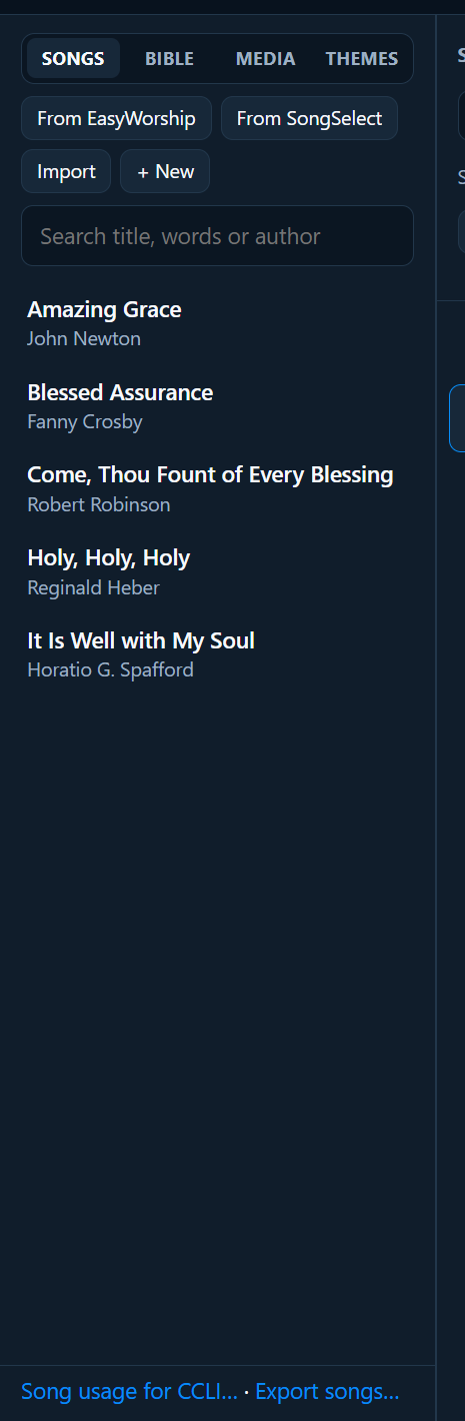
Your songs live in the Songs tab on the left. PraiseAV comes with some well-known hymns, and you can bring in your own from SongSelect, a chord sheet PDF, EasyWorship, OpenSong or a text file.
Find a song
Type into the search box: a few words of the title, the words, or the author. You don’t need the start of the title: “saved a wretch” finds Amazing Grace.
Add a song to the service
Any of these:
- Double-click the song.
- Point at the song and click +.
- Drag it into the service, to the place you want.
New items go just after whatever is selected in the service.
Make a new song, or change one
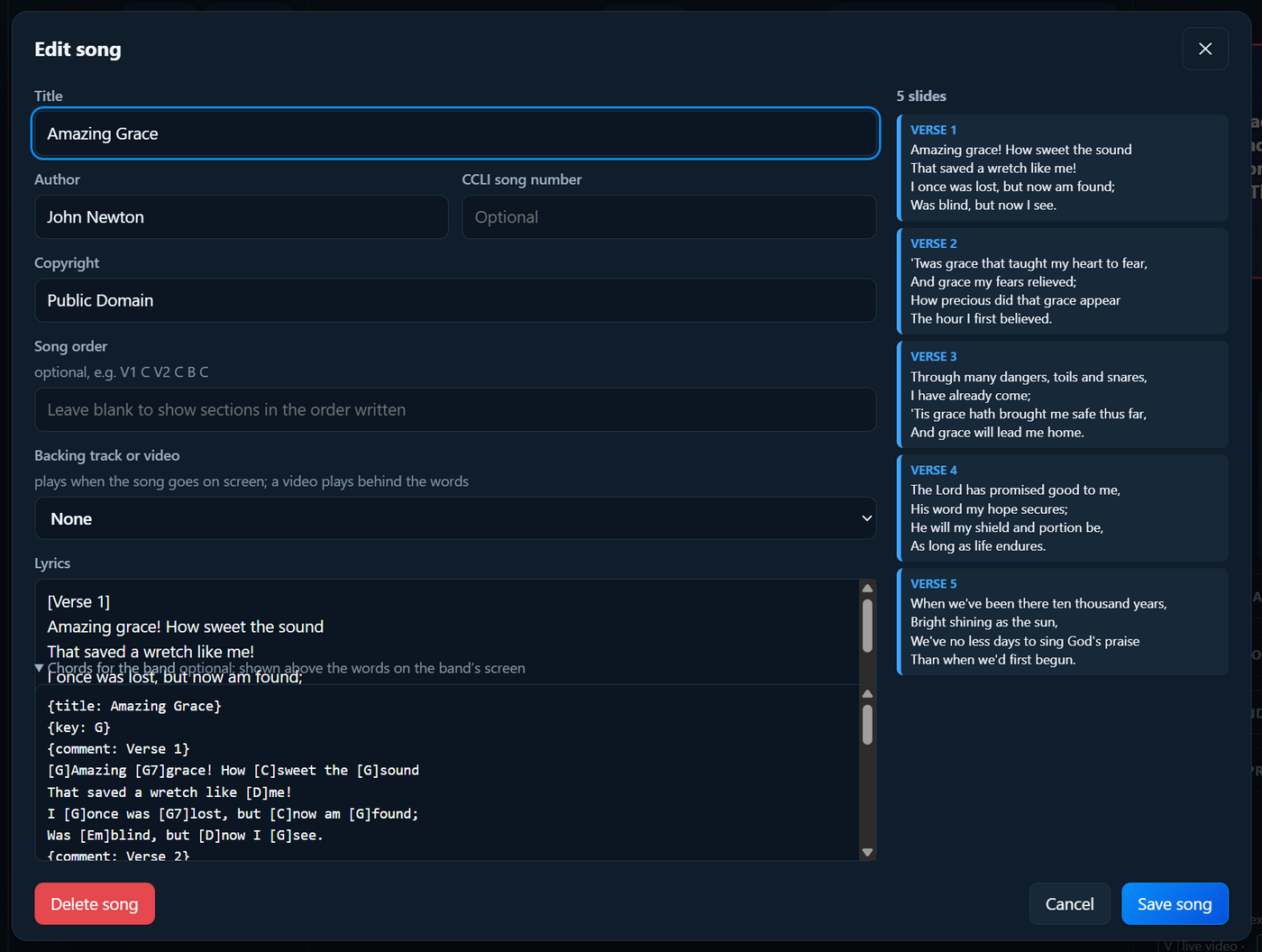
Click + New (top of the Songs tab), or select a song in the service and click Edit song above its slides. You can also point at a song in the list and click ✎.
| Box | What to put |
|---|---|
| Title | The song’s name |
| Author | Who wrote it (shown small on the first slide) |
| CCLI song number | From SongSelect or the songbook. Needed for your CCLI report. |
| Copyright | For example “Public Domain” or “© 2019 Publisher” |
| Song order | Optional. The order to sing the sections, for example V1 C V2 C B C. Leave it blank to go in the order written. |
| Backing track or video | Optional. Music, or a video that plays behind the words, when the song goes on screen. See Music and audio. |
| Lyrics | The words (see below) |
Writing the words
- Put each section’s name in square brackets on its own line:
[Verse 1],[Chorus],[Bridge],[Pre-Chorus],[Tag]. - A blank line starts a new slide within a section.
- Long sections are split into slides of about four lines by themselves, evenly.
[Verse 1]
Amazing grace! How sweet the sound
That saved a wretch like me!

[Chorus]
...
The preview on the right shows the slides as you type. Click Save song.
Chords for the band
Click Chords for the band in the song window to add chords. There are two ways.
Paste a chord sheet. Most bands already have the chords on their own line above the words, from a website, a document or their own notes:
Verse 1
G       G7         C         G
Amazing grace! How sweet the sound
                         D
That saved a wretch like me!
Copy it and paste it into the chords box. PraiseAV puts each chord into the words, just before the letter it was sitting over, so you see this:
{comment: Verse 1}
[G]Amazing [G7]grace! How [C]sweet the [G]sound
That saved a wretch like [D]me!
Headings like Verse 1, Chorus: or [Chorus] become {comment: …} lines, and a line of chords with no words under it (an intro, say) is kept as it is. A chord sheet you type in yourself is put into the words the same way when you click out of the box.
Or start from the words. Click Start from the words to copy the song’s words into the chords box, then type each chord in square brackets just before the word (or syllable) it goes over: [G]Amazing [G7]grace. If the box already has chords in it, PraiseAV asks before replacing them.
Chords on the first verse only? Hymn books often print the chords over the first verse and leave them off the rest, because every verse has the same tune. You can do the same: if a verse has no chords of its own (and the same number of lines as the first), the band’s screen shows the first verse’s chords over it, each on the word in the same place in the line. Check it once, as the words of later verses don’t always fall in exactly the same places; give a verse its own chords to change any.
The chords then appear above the words on the band’s screen. Songs imported from SongSelect chord charts, chord sheet PDFs and OpenSong bring their chords with them, and Amazing Grace comes with its traditional chords.
Delete a song
Open it in the editor and click Delete song. It’s taken out of the library (and today’s service). Saved services keep their own copy, so they still work.
Songs from SongSelect
If your church has a SongSelect account (from CCLI), you can find songs there and bring them straight into PraiseAV:
- In the Songs tab, click From SongSelect. SongSelect opens in its own window.
- The first time, sign in with your church’s SongSelect email and password. You type them into SongSelect’s own page: PraiseAV never sees them. SongSelect remembers you next time.
- Find the song as usual, then press SongSelect’s Download and choose the Lyrics or the Chord Sheet.
- The song is added to your songs by itself. The window’s title, and a message above your song list, say Added “Song title” to your songs, and the song is shown in the list, ready to use.
- You can download several songs, one after another. Close the SongSelect window when you’ve finished.
- If you already have the song, it isn’t added twice: the message says it’s already in your songs, and shows you where.
- A lead sheet (sheet music) can’t be used for words on the screen, so PraiseAV says so. Download the Lyrics or the Chord Sheet instead.
- Each song is chosen and downloaded by you. PraiseAV doesn’t search SongSelect or download anything by itself, as CCLI’s rules ask.
- Songs already downloaded from SongSelect can be brought in with Import, below.
Import songs
Click Import in the Songs tab and choose the files (or a zip), or drag files or a whole folder onto the song list. PraiseAV understands:
| From | What to use |
|---|---|
| SongSelect (CCLI) | The easiest way is From SongSelect (above). Files already downloaded work too: the chord chart (PDF) or the lyrics file (.txt, or .usr from older downloads). The CCLI number, author, copyright and key come too. |
| Chord sheets (PDF) | Chord sheets from a band’s website (Rend Collective’s, for one) and church song books, with the chords on their own line above the words. Each chord goes on the syllable it was printed over, and the title, writers, key and sections (Verse 1, Chorus, Repeat Chorus…) come too. A song book becomes one song for each song in it. Sheets with numbers instead of chords (1 4 5) get proper chords if the sheet says its key; if not, just the words come in. Check a song or two afterwards: in song books typed up by hand the chords are sometimes a little out of place. A scanned PDF (a photo of the page) can’t be read. |
| EasyWorship | From EasyWorship finds its whole song library on this computer. Or import a Songs.db file, or a schedule (.ewsx). See Coming from EasyWorship. |
| OpenSong | From OpenSong (shown when OpenSong is on this computer), or import its song files or drag in its Songs folder. |
OpenLyrics (.xml) |
The free song format that OpenLP, FreeShow, Quelea and PraiseAV’s own export use. |
| A zip, or a folder | A zip of song files (a download of chord charts, say), or a whole folder dragged onto the song list. PraiseAV looks through it, including folders inside, and imports every song file it finds. No need to unzip first. |
| A text file | A .txt file of lyrics, with section names like Verse 1 or [Chorus] on their own lines. |
When it’s done, PraiseAV lists what it brought in, what it skipped (songs you already have) and anything that didn’t work, with the reason.
A song counts as one you already have when it has the same CCLI number, or the same title and the same words. Small differences don’t matter: commas and full stops, capital letters, the kind of apostrophe, extra spaces and section labels like Verse 1 or Chorus:. So the same hymn copied from another book isn’t added twice. A song with the same title but really different words (a modern version of an old hymn, say) is added as a song of its own.
If the song you already have has no chords and the one coming in does, PraiseAV keeps your song (its words, title and author) and adds the chords to it. The results say Already had “Holy, Holy, Holy”; added its chords. If both have chords, yours are kept.
Sheet music (notes on staves, with the words under the notes) can’t be imported: PraiseAV needs the words, or a chord sheet with the chords above the words.
Export songs
Your songs are never locked in. Click Export songs… at the bottom of the Songs tab and choose where to put them. PraiseAV makes a folder called PraiseAV songs with the date, and inside it every song twice:
- Text: a
.txtfile for each song, easy to read and print, laid out like a SongSelect lyrics file. - OpenLyrics: an
.xmlfile for each song, in the free standard format that other worship programs (OpenLP, FreeShow, Quelea…) can import, with verses, song order, authors, copyright and CCLI number.
Either kind can be imported back into PraiseAV on another computer. To move everything (services, settings and media too), use a backup instead.
Themes for a song
How the words look comes from the theme for songs. To give one song a different look (a Christmas carol, say), pick a theme in the box above its slides. See Themes.